Ditho
Ditho
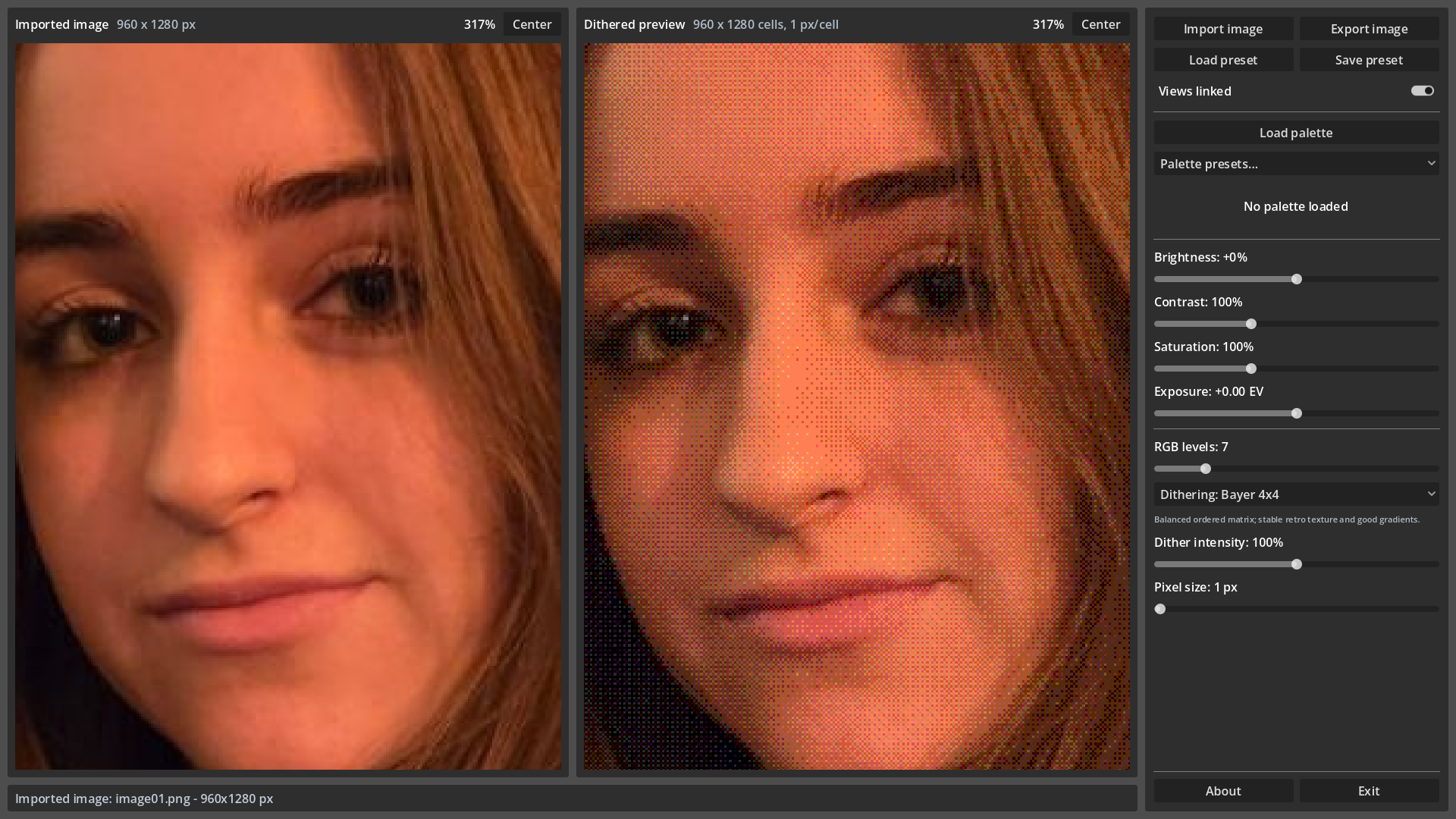
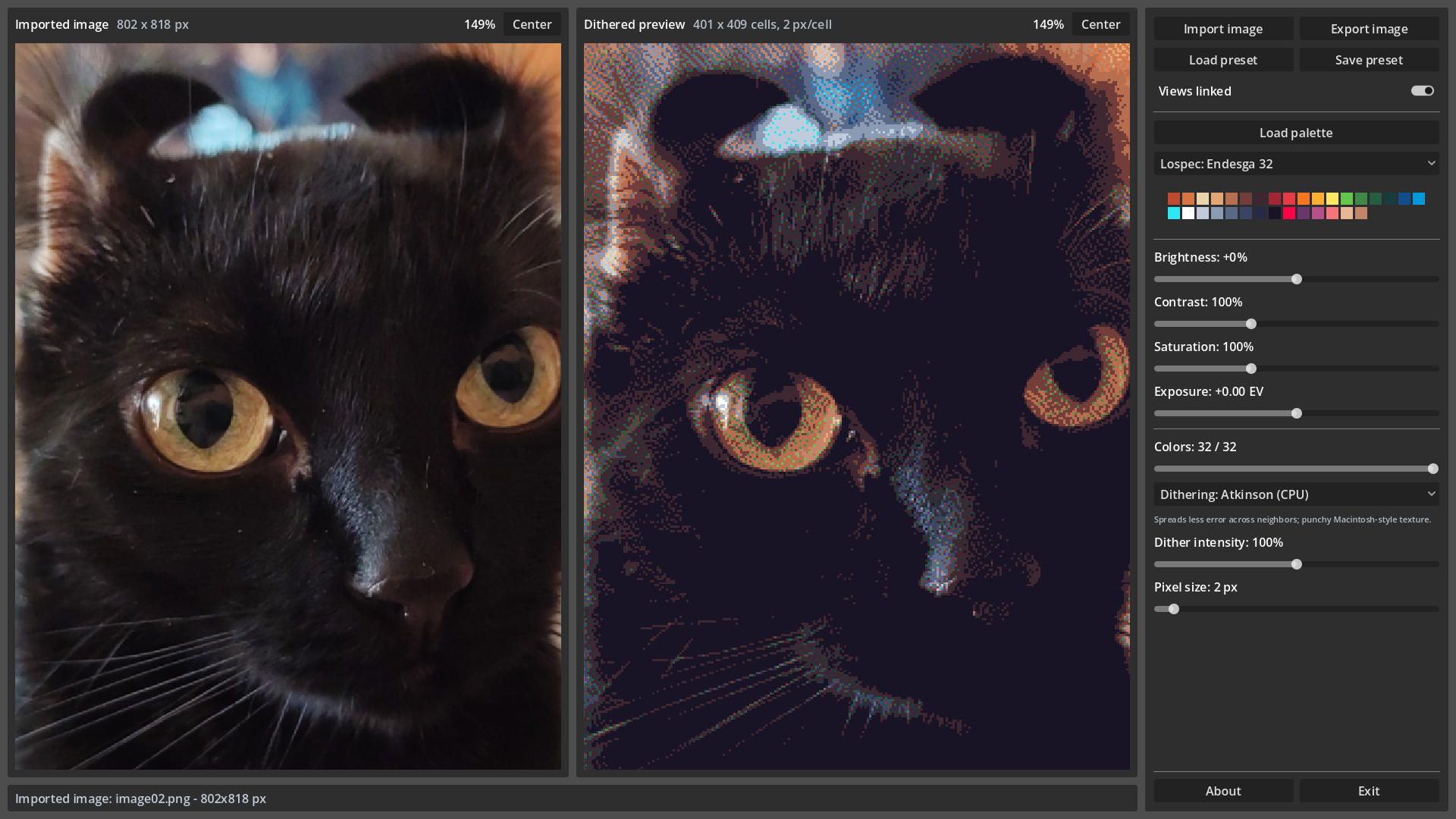
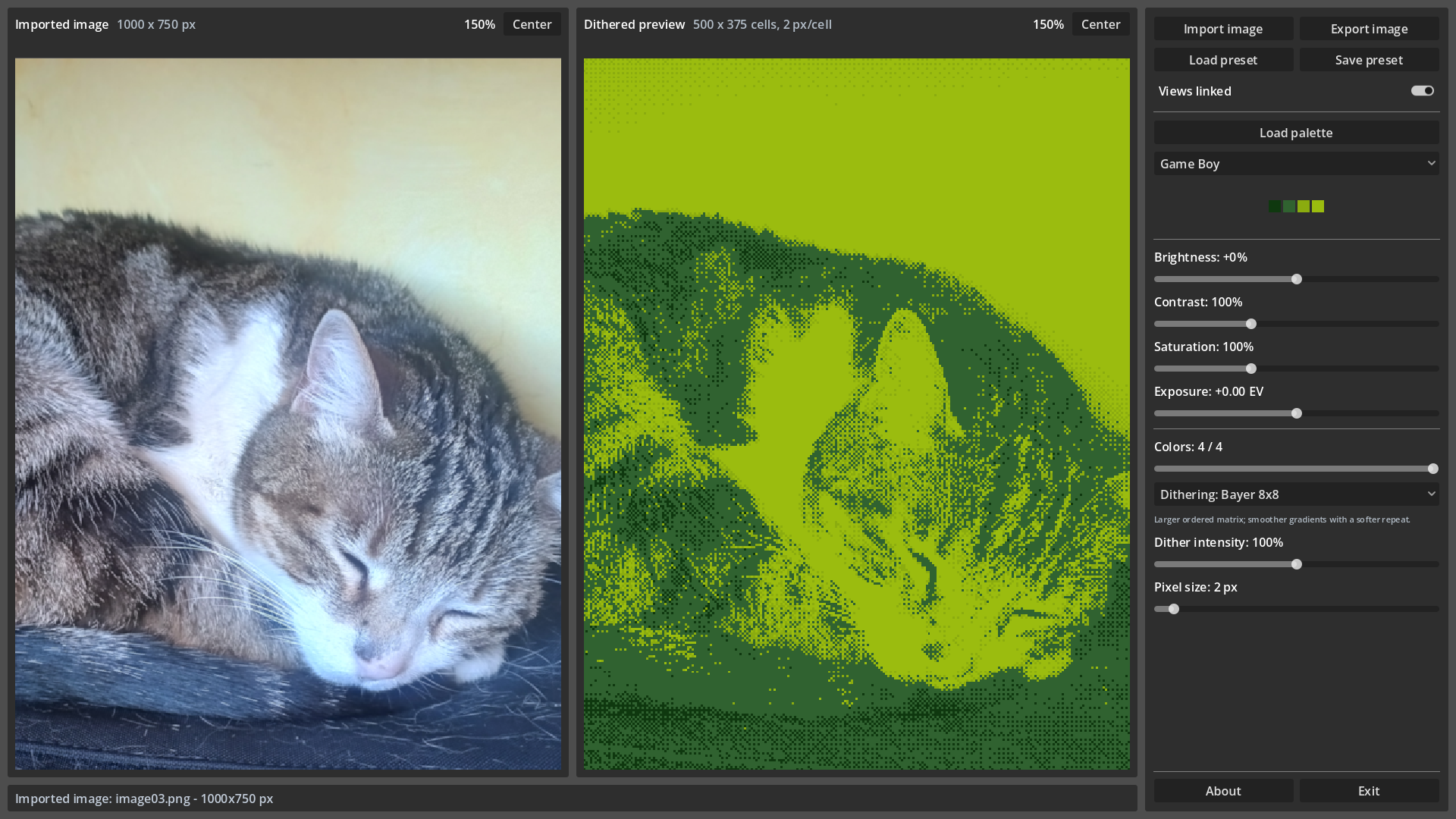
Ditho turns images into retro-styled, palette-limited dither art. Use it in the browser or as a desktop app to import a picture, choose a palette, tune the image, pick a dithering mode, and export a compact PNG result.
It is built for quick experiments, repeatable presets, and batch-friendly exports.
Features
- Two-panel workflow with imported and processed previews
- Mouse wheel zoom and middle-mouse panning
- Linked or independent view navigation
- Palette loading from GIMP GPL, JASC PAL, HEX, ASE, and Aseprite files
- Built-in retro system palettes and selected Lospec palettes
- Brightness, contrast, saturation, and exposure controls before dithering
- Ordered and error-diffusion dithering algorithms
- Adjustable color count, dither intensity, and pixel size
- Save and load JSON presets
- Command-line export for batch workflows on desktop builds
Basic Workflow
- Import an image.
- Choose a palette or leave the palette empty for RGB-level quantization.
- Adjust brightness, contrast, saturation, and exposure if needed.
- Pick the color count or RGB levels.
- Choose a dithering mode.
- Adjust dither intensity and pixel size.
- Export the result as a PNG.
- Save a preset if you want to reuse the same look later.
Controls
- Mouse wheel: zoom the image panels
- Middle mouse drag: pan
- Center: reset zoom and pan
- Views linked: sync zoom and pan between both panels
- Right-click an adjustment slider: reset it
- F11: toggle fullscreen in the desktop app
Palettes And Presets
If no palette is loaded, RGB levels controls how many levels each RGB channel can use. If a palette is loaded, Colors controls how many palette colors are used. When a palette has more colors than requested, Ditho chooses the colors that best match the current image.
Dithering Modes
Fast shader-preview modes:
None: palette or RGB-level reduction without added texture.Bayer 2x2: coarse ordered texture with strong retro contrast.Bayer 4x4: balanced ordered texture for general use.Bayer 8x8: smoother ordered gradients with a wider repeating pattern.Ordered noise: stable grain-like thresholding.Checkerboard: crisp alternating cells for sharp low-color output.Clustered dot 4x4: grouped dot texture inspired by print screens.Horizontal lines: scanline-like horizontal bands.Vertical lines: vertical stripe texture.Diagonal lines: slanted stripe texture.Reverse diagonal lines: mirrored diagonal stripe texture.Crosshatch: layered line texture with a woven look.Dot grid: regular dot pattern for graphic posterized output.Halftone 6x6: rounder print-style dots.Brick: offset tiled blocks.Waves: flowing sine-wave bands.Rings: circular radial bands.Plaid: crossed stripe pattern with diagonal accents.
CPU modes:
Floyd-Steinberg: classic detail-preserving error diffusion.Atkinson: brighter, punchier classic-computer diffusion.Jarvis-Judice-Ninke: smoother wide-kernel diffusion for soft tones.Sierra Lite: small, fast diffusion with a softer result.Stucki: broad diffusion with smooth tonal transitions.Burkes: shorter Stucki-like diffusion with moderate cost.Sierra: full Sierra diffusion for detailed photographic input.Two-row Sierra: faster Sierra variant with less vertical spread.False Floyd-Steinberg: simpler diffusion with rougher high-contrast texture.
CPU modes can look more organic, but they can take longer on large images because each processed cell depends on earlier cells.
Pixel Size
Pixel size controls how many source pixels become one processed cell. Higher values create chunkier pixel art and smaller exported PNGs.
For example, a 640 x 480 image with Pixel size: 2 px exports as a 320 x 240 PNG.
Desktop CLI
Desktop builds can export from the command line:
./ditho --image input.png --preset preset01.json --output output.png
If both --preset and --palette are provided, the palette argument is loaded after the preset and overrides the preset palette.
Tips
- Start with Bayer 4x4 for fast general-purpose results.
- Use Atkinson for a bright classic computer look.
- Use Floyd-Steinberg or Sierra for more photographic detail.
- Increase pixel size before using CPU modes on very large images.
- Reduce saturation slightly before dithering if palette matching feels too harsh.
- Use None when you only want palette reduction without texture.
Download
Click download now to get access to the following files:
Leave a comment
Log in with itch.io to leave a comment.